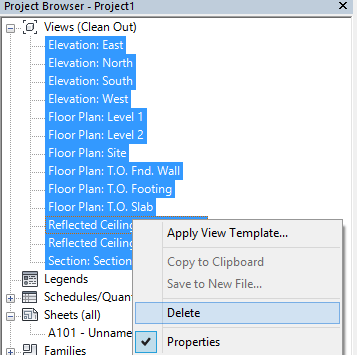
A few people have asked me how I quickly deleted the views in my previous post. The answer is quite simple. Filters. I needed to keep two pre-defined views in the RVT files that I was issuing to the client.
First up, right click on Views at the top of the Project Browser and select Browser Organisation and create a browser organisation settings. In this example I am using Revit 2014, if you are using an earlier version of Revit what you see will be slightly different to my screenshots.

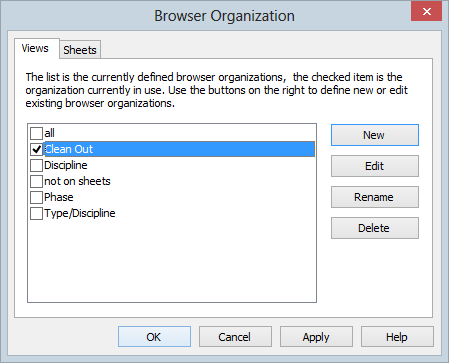
The two views that I wanted to keep are named $Navisworks Export and Start Page, so in the Filters tab of Browser Organisation Properties window we need to filter the browser to show results that are not $Navisworks Export and not Start Page as per the screenshot below. Unfortunately contains is not an option, so we can only choose a view name with an exact match.
We then need to simply group by none on the Grouping and Sorting tab.


The result is a list of all the views that we want to remove. Simply select all and delete them. You can select all your views (floor plans, ceiling plans, 3D views, drafting views etc), legends and schedules and delete these all at once. If you want to delete the sheets, you will need to select and delete them seperately.