revit

Using Integers for Tricky Titleblocks

Have you ever come across a project with a keyplan in the titleblock and wondered how to go about managing the keyplan shading? The last thing you want to be doing is clicking every single check box across hundreds of drawings.

2015-06-24_15-45-31

In this jumbled mess there are a total of 14 shaded areas on the keyplan. 3 for the basement, 3 for the roof and 8 for ground and first floor. So what is the most efficient way to manage it all?

The answer is integers.

An integer is simply a number that is not a fraction. It is a whole number. In the instance of our keyplan, integers can be used to control the shading for our titleblock by associating those values with an on/of visibility parameter.

In this example, I have used the following number sequences

Basement = 1 – 3 (you could use negatives here)
Ground & first floors = 21 – 28
Roof = 31 – 33

2015-06-24_15-55-02

Each of the visibility parameters are then associated with the integer value by simply using the formula KEYPLAN_INT = x where x is the value associated with each level and zone. So for example, KEYPLAN_INT = 24 looks like this

2015-06-24_15-59-10

But we don’t have to stop there. You would have notice we have two wings on the project that has resulted in the drawings being rotated at 10 degrees, this means on those 3 zones our north point will be different to the rest of the project. We can again use our integer parameter to solve this.

As these rotated views are only on ground and first floor, they are associated with the codes 25, 26 and 27, this means we can control our north point rotation with an and formula nested inside an if formula. The formula that I’ve used is if(and(KEYPLAN_INT > 24, KEYPLAN_INT < 28), 3.091°, 13.091°) so any drawings that have a keyplan integer of greater than 24 and less than 28 will have the north point rotated at 13.091 from north, the remaining drawings will have their north points rotated at 3.091 degrees.

But what about the drawings that we don’t want a northpoint, or a keyplan for that matter? Drawings like schematics, details and drawing lists. The shaded parts of the keyplan already only display if the correct code is used, so we can take advantage of this and simply create another visibility parameter that is associated with the building outline, the additional border line on the titleblock and the north point. In my example I’ve named this parameter NO_KEYPLAN with the formula of not(KEYPLAN_INT = 0). When the integer = 0, everything is switched off.

If you have people that don’t know how to read hydraulics drawings (I’m looking at you Sydney), you can also associate this parameter with Stratman and his sweet 70s style.

So on the left we have an integer value of 24 and on the right, the same titleblock with an integer value of 0.

2015-06-24_16-14-23 2015-06-24_16-18-32


You can then use your favourite bi-directional Excel option, be it Dynamo, BIMLink or some other alternative, export all the data to excel, set the integers for each sheet, re-import the data and you’re done.


Building Design Suite Premium 2015 Unassisted Uninstaller

I was having a bit of trouble with a corrupt 2015 Building Design Suite Premium (BDSP) deployment from Microsoft’s System Centre Configuration Manager (SCCM) or Software Centre as the end user would know it.

Unforunately as the story goes, the deployment was installed on my production machine to fix some other issues with Revit 2015; next thing you know almost 2 days of 2015 downtime.

One of the most frustrating parts of the whole process is that although BDSP installs all the software you require in one seamless install package, uninstalling is not as easy. You need to go through and uninstall each program individually, in my instance that was 42 separate uninstalls I had to click though.. in the words of Kimberly Wilkins..

post-6769-aint-nobody-got-time-for-that-udx4.gif

You’ve probably realised by now that mind numbing clicking is not how I roll, so I went on the hunt for a solution, I very quickly stumbled across Mick Pletcher’s post about doing the exact same thing with Building Design Suite Ultimate using a powershell script.

The trick was to get the GUIDs for each part of the 2015 BDSP package as they would be different to Mick’s 2014 example.

You can do this with Windows Powershell, if you don’t have Powershell installed, simply head to Programs and Features in Control Panel and select Turn Windows features on or off scroll down through the list and makes sure that Powershell is checked

2015-06-17_8-30-26

Once in Powershell simply type the command wmic product get > c:\installedprograms.txt.

You will have to wait a moment or two depending on how much software you have installed but this will write a *.txt file to your C:\ which will list out all the software that you have installed on your machine.

You can then import the text file to Excel as a fixed width import. It will take a few moments to correctly place each column but once you’re done you should have something resembling this

2015-06-17_8-39-10

I sorted the data by the install date, as the BDSP package is installed at the same time. This made it easy to grab the information for the software that I wanted to get rid of. The information that we need is Description and IdentifyingNumber.

I simply put the information that I needed on another sheet and then concatenated the data in Excel so it matched the format required in Mick’s script, I then removed the 2014 BDSU information from the script and replaced it with my 2015 BDSP information.


UninstallApplication "SketchUp Import" "{C403E867-FCF1-432B-BCC1-8FFD40A10A6E}"
UninstallApplication "Autodesk App Manager" "{C8125548-F2D5-4059-823F-1F3C5BBD9F19}"
UninstallApplication "Autodesk BIM 360 Revit 2015 Add-in 64 bit" "{0D801D98-061A-4A4C-92B5-D3EC03C35587}"
UninstallApplication "Autodesk BIM 360 Glue AutoCAD 2015 Add-in 64 bit" "{B0E4871A-09A2-49C3-9A9E-D6409B37FD3A}"
UninstallApplication "Autodesk Featured Apps" "{EDDEE94B-214D-4B07-9727-A3E46F3E379A}"
UninstallApplication "Autodesk BIM 360 Navisworks Simulate 2015 Add-in 64 bit" "{3DA87F6B-013D-4C10-AE7A-79A03F7776D9}"
UninstallApplication "Autodesk Revit Interoperability for Showcase 2015" "{0BB716E0-1500-0410-0000-097DC2F354DF}"
UninstallApplication "Autodesk Revit Interoperability for 3ds Max 2015" "{0BB716E0-1500-0610-0000-097DC2F354DF}"
UninstallApplication "Autodesk Revit Interoperability for Navisworks Simulate 2015" "{0BB716E0-1500-0910-0000-097DC2F354DF}"
UninstallApplication "Autodesk Civil View for 3ds Max Design 2015 64-bit" "{1C4FFAF0-5DBB-4F7A-A386-46747D060826}"
UninstallApplication "Autodesk AutoCAD Performance Feedback Tool Version 1.2.2" "{85735431-6CD3-4B16-BEC8-95332034E53B}"
UninstallApplication "Autodesk Navisworks Simulate 2015 - 2014 DWG File Reader" "{051FD4D2-A63E-4796-929B-FB3B14E4DEB3}"
UninstallApplication "Autodesk Backburner 2015" "{8C5F38D2-8EFE-49A4-B3F5-BF3210FED168}"
UninstallApplication "Autodesk ReCap" "{31ABA3F2-0000-1033-0102-111D43815377}"
UninstallApplication "Autodesk Navisworks Simulate 2015 - 2010 DWG File Reader" "{9EA4D5D3-56DB-4B4F-AF40-3950178CE251}"
UninstallApplication "Autodesk Navisworks Simulate 2015 - 2012 DWG File Reader" "{B94DD4C4-632E-4EA7-97C4-94C3002189A6}"
UninstallApplication "Autodesk Navisworks Simulate 2015 - 2015 DWG File Reader" "{572D5A65-A177-426E-98FE-2221C2D612DC}"
UninstallApplication "Autodesk Navisworks Simulate 2015 - 2013 DWG File Reader" "{F2AB5586-5E2F-4971-BC10-5DB8C38B59B3}"
UninstallApplication "Autodesk Navisworks 2015 Exporters - 64 bit" "{2F1CE637-CF54-59E6-9D30-AD8AC2FD8B73}"
UninstallApplication "Autodesk Navisworks 2015 Exporters - 64 bit - English Language Pack" "{2F1CE637-CF54-0409-9D30-AD8AC2FD8B73}"
UninstallApplication "Microsoft Visual C++ 2012 x64 Additional Runtime - 11.0.61030" "{37B8F9C7-03FB-3253-8781-2517C99D7C00}"
UninstallApplication "Autodesk 3ds Max Design 2015" "{52B37EC7-D836-0410-0364-3C24BCED2010}"
UninstallApplication "AutoCAD 2015 - English" "{5783F2D7-E001-0000-0102-0060B0CE6BBA}"
UninstallApplication "AutoCAD 2015 Language Pack - English" "{5783F2D7-E001-0409-1102-0060B0CE6BBA}"
UninstallApplication "AutoCAD 2015 - English" "{5783F2D7-E001-0409-2102-0060B0CE6BBA}"
UninstallApplication "AutoCAD Raster Design 2015" "{5783F2D7-E031-0409-0102-0060B0CE6BBA}"
UninstallApplication "AutoCAD MEP 2015 - English" "{5783F2D7-E006-0000-0102-0060B0CE6BBA}"
UninstallApplication "AutoCAD MEP 2015 Language Pack - English" "{5783F2D7-E006-0409-1102-0060B0CE6BBA}"
UninstallApplication "AutoCAD MEP 2015 - English" "{5783F2D7-E006-0409-2102-0060B0CE6BBA}"
UninstallApplication "Autodesk Content Service" "{A37CDB58-AAE8-0000-8C13-E0F7BACB0D5F}"
UninstallApplication "Autodesk Content Service Language Pack" "{A37CDB58-AAE8-0001-8C13-E0F7BACB0D5F}"
UninstallApplication "Autodesk Workflows 2015" "{A90DD6F8-60D2-4803-AFF6-796400E73E1B}"
UninstallApplication "Autodesk Navisworks Simulate 2015" "{9D7AF9A9-2E52-0000-B0D0-652C6A18F3B8}"
UninstallApplication "Autodesk Navisworks Simulate 2015 - English Language Pack" "{9D7AF9A9-2E52-0409-B0D0-652C6A18F3B8}"
UninstallApplication "Autodesk Inventor Server Engine for 3ds Max Design 2015" "{D7DEFF4A-BB64-48CC-81AB-845BA62D6032}"
UninstallApplication "Autodesk Navisworks Simulate 2015 - 2011 DWG File Reader" "{8DA3934B-7873-46CC-A67C-54706D8E97BA}"
UninstallApplication "Microsoft Visual C++ 2012 x86 Additional Runtime - 11.0.61030" "{B175520C-86A2-35A7-8619-86DC379688B9}"
UninstallApplication "Microsoft Visual C++ 2012 x64 Minimum Runtime - 11.0.61030" "{CF2BEA3C-26EA-32F8-AA9B-331F7E34BA97}"
UninstallApplication "Autodesk DirectConnect 2015 64-bit" "{23C9ED7C-CB64-45FE-A7EA-1BA666F5589D}"
UninstallApplication "Microsoft Visual C++ 2012 x86 Minimum Runtime - 11.0.61030" "{BD95A8CD-1D9F-35AD-981A-3E7925026EBB}"
UninstallApplication "Autodesk Showcase 2015 64-bit" "{C7CE59CD-1993-44C6-A997-F17C1FA560A1}"
UninstallApplication "Autodesk 3ds Max 2015 Populate Data" "{57E92DED-DC6C-41E5-B9E1-76D83BD2EABE}"
UninstallApplication "Autodesk Navisworks Simulate 2015 - 2009 DWG File Reader" "{B0225F8F-483A-4ABF-AD72-63F5CA1F7A15}"

Now simply save the script as a *.PS1 (that’s a one, not a lowercase L) file, head into Powershell to where the script is saved – I saved mine as C:\2015uninstall.PS1 to run it just type in .\2015uninstall.ps1 and what BDSP uninstall without any further user intervention.

If the script doesn’t run you may need to change some settings in the Group Policy Editor. Head to Computer Configuration -> Administrative Templates -> Windows Components -> Windows Powershell, edit the Turn on Script Execution policy to be enabled and change the execution policy.

2015-06-17_9-02-48

The Allow local scripts and remote signed scripts should work, for security just remember to change the setting back to disabled when you’re done.

Using C# Macros to Bulk Create New Family Types

If you have it, BIMLink is a great piece of software with many different uses, from project setup to managing the bi-directional flow of data, through to standards and overall process management.

One of the things I’ve used it for quite a bit is renaming family names and type names bringing family content into line with company naming conventions turning a mess like this

2015-06-16_9-14-07

into something clean like this

2015-06-16_9-23-04

If you’ve ever ventured down this path, you may have discovered a shortfall in the process due to BIMLink not being able include families in a ‘type link’ with families that don’t actually have a defined type like these ones highlighted below

2015-06-16_9-31-00

This suddenly makes the standardisation process a whole lot more time consuming because if you have a lot of families without defined types, there is nothing BIMLink can do to help you. I even spoke with the Ideate team at the Australian Revit Technology Conference recently and they confirmed that this was the case and there wasn’t much they could do to help out as they are limited to what they can do by the Revit API.

I was determined to overcome the issue though, there had to be a way where I didn’t have to manually create a new type for every single family!

My first thought was to export all the families and then use journal files to batch process them, in concept it worked; each file in my list would have a new family type created but unfortunately it would fail after it created the new family type on the families without an existing type – the exact families I was trying to work with. I could continue to process the next file by restarting the batch but mindlessly restarting batch files until all the files were modified wasn’t the solution I was looking for.

In the end the solution was C#. BIMLink might be limited by the API because it is dealing with families within the open model, but I wasn’t limited to that as I’d already exported the family files to my local machine.

I came up with was a somewhat simple C# macro that processes a group of families in a predetermined folder, from there it creates a new family type for each simply named New_Family.

I had initially wanted to create family types named Standard but realised I’d likely run into issues with my macro due to it’s simplicity if I came across a family that already included the Standard type name.

public void ProcessNewTypes()
{
    Autodesk.Revit.ApplicationServices.Application application = this.Application;
    string directory = @"C:\INSERT\FILE\LOCATION";
    string s = "";

    // loop through all files in the directory
    foreach (string filename in Directory.GetFiles(directory))
    {
        s += "Family Name,Family Type,";
        Document doc = application.OpenDocumentFile(filename);

    // skip any files that are not family *.rfa files
        if (!doc.IsFamilyDocument)
            return; 

    // create the new family types
        using (Transaction t = new Transaction(doc, "Create New Family Type"))
            {
            t.Start();

        FamilyManager familyManager = doc.FamilyManager;

    // this is the new family type name
        {
            familyManager.NewType("New_Family");
        }

    // commit the changes and save the family *.rfa file
        t.Commit();
        doc.Save();

            }

      }
}

And it was that simple. For me, the macro processed around 350 families in a few seconds.

Once complete, you can reload the families into your template or project file and then process the files through BIMLink as per usual to rename the family and type names.

For any families that already had a determined type and have now ended up with two types, you can simply purge out the New_Family types from the model.

Scope Box Synchroniser Addin

Have you ever tried to manage a large project across multiple models with numerous scope boxes? Or maybe you just want to have your scope boxes match the ones living in the architect’s model?

Well, there is a new addin that you can get for Revit called the Scope Box Synchroniser which imports scope boxes from a linked Revit model.

You can read more at the author’s website at Omnia Revit or head straight to the Autodek App Exchange to download

Just imagine how much easier this could make your life when setting up a large multi-model, multi-discipline project. You setup a master control file that hosts your levels, grids and now also your scope boxes. Link in that master control file to each of your S+MEP models and pull in consistent scope boxes across the project.

Taking a Return Trip From Revit to Excel Using Dynamo

Last week I wrote about using note block schedules to create specification sheets and I explained how you can use addins such as BIMLink, custom macros or C# addins or Dynamo to get the data out to Excel so that it can be edited by an engineer and then re-imported to Revit from Excel.

Problem is, you don’t have a BIMLink licence, you don’t know how to code in C#, the most accessible method for you to achieve this workflow is Dynamo but you don’t even know where to start; never fear! In this post I explain how to create a bi-directional link between Revit and Excel using Dynamo using the as the note blocks from my previous post as an example.

I’ll be using Dynamo 0.80 which can be found on the Dynamo BIM download page.

Exporting from Revit to Excel

The export to Excel process is pretty simple, you just need to think about the logical steps that you need to take. You want to select the family you wish to export data from, select the parameters to export, organise them in a list and then write it to the Excel file itself.

To step through the process, first select the family type and push that into an All Elements of Family Type node.

2015-06-11_12-33-39


From there we start our first step in taking care of the family unique identifier by using the Element.UniqueId node, this will export the family’s GUID. Simply link the All Elements of Family Type node to this one. You need to export each individual family’s unique identifier as well, if you don’t, as the BIM Troublemaker discovered you may end up importing the wrong data to the wrong family.

Next, you need to select each of the parameters you want to export, for this you need to use the Element.GetParameterValueByName node. Link the All Elements of Family Type node through to this node and you will also need to add a String node which is where you input the name of the parameter. Because I’m using the annotation family from my note block post, the parameters that I will be exporting are NUMBER, NOTE, CATEGORY and REGION. Note that the value that you enter into the string is case sensitive and that you need to repeat this for each parameter you are wanting to export.

2015-06-11_12-33-50

Now you need to push the output of each of our Element.GetParameterValueByName nodes through to the List.Create node. This will actually create a list that will run the parameters across the page with each parameter being spread across a row instead of being arranged in columns. If you exported the data to Excel at this point, you would end up with something that looks like this:

2015-06-11_12-46-17


However this isn’t how we want to work, we like our data arranged in columns. To do this, use the List.Transpose node which swaps the rows and columns in the created list.


To finish off we need to use the Excel.WriteToFile node in which we pass through a File Path node, a String which names the Excel sheet and a few Numbers which gives the starting row and column of our excel sheet.

The result is a nice, easy to read export of all the data relevant to our note block schedules ready to be modified by an engineer.

2015-06-11_12-56-52


At this point you can use the Sort function in Excel to sort your Excel file into a usable list. In this instance I have chosen to sort by Column D and then Column B so that I am sorting first by category and then by note number.

2015-06-11_14-18-21

Importing back into Revit from Excel

Once the engineer has finished modifying the Excel sheet, we’re ready to bring the data back into Revit from Excel. This process is slightly more cumbersome but overall not a whole lot more difficult than the export process.
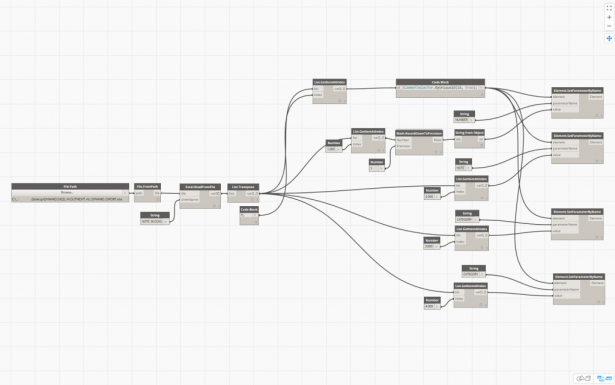
2015-06-11_13-24-16

First we need to pick up our Excel file, start with the File Path node that we used before, before we go to the Excel.ReadFromFile node though we need to pass the file path through the File.FromPath node otherwise it will not work. We also need to add a String so we can tell Dynamo which sheet to read. Next, pass the data back through the List.Transpose node to get the data back into a format that Dynamo and Revit are happy to work with.

2015-06-11_13-27-55


Remember earlier I mentioned during the export process that to make sure we’re writing the correct information to the correct family we need to index our list and the families by their GUID? Thanks to the BIM Troublemaker, we know how to select each element from our Excel file based on the GUID. First, start with a List.GetItemAtIndex node and connect the List.Transpose node to it. Next, add a Code Block node and enter the text 0; this passes through the number 0 as our row index. Finally, add a Code Block node and insert the code  ElementSelector.ByUniqueId(id, true); this is case sensitive, so make sure that you enter it correctly or it will not work!

2015-06-11_13-35-13


Finally, we need to push the data through to each parameter for each individual family. To do this, use an Element.SetParameterByName node. We need to feed the ElementSelector Code Block that we created into our node, along with a String node that matches our parameter name, remember this value is case sensitive and finally we need to link up our value via a List.GetItemAtIndex node.

The List.GetItemAtIndex node needs to be told which row to use to pull it’s data from, this is as simple as adding a Number node. Don’t forget though that the first row is at index 0, which is where we are pulling our GUID from, so we want to pull our first series of parameters from the row which is at index 1.

In this instance our index 1 is our number list which you may not need to import this so you could skip this step, but if you do need to populate the number data and you try to feed the parameter from the List.GetItemAtIndex node directly to the Element.SetParameterByName node Revit will throw back an error stating that “The parameter storage type is not a number”. Originally I tried to overcome this by using the node String from Object but this gives a number to 3 decimal places and we don’t want to see this on our specification sheet. The solution in this instance was to first use the Math.RoundDownToPrecision node from the Clockwork package which you can download from within Dynamo itself or from dynamopackages.com. We need to pass a number to the Math.RoundDownToPrecision node to indicate the precision we want, which in this case we want a precision of 1.

The number conversion is the only oddball of the parameters that we’re working with, the rest of the parameters simlpy feed the List.GetItemAtIndex node directly to the Element.SetParameterByName node. Repeat for each parameter that you want to populate.

2015-06-11_13-44-43


And to finish up, our results:


Using Note Blocks for Project Specifications

Quite a while ago I was looking for a solution for specification drawings, they crop up from time to time on small jobs when a separate specification document isn’t required.

The problem with these specification drawings though is that the content of the text usually started life in AutoCAD, then it’s imported and roughly tidied up in Revit, it’s usually copied and pasted from one job to the next and you end up with text that is cumbersome to modify and information irrelevant to the current project.

The answer to the problem is note blocks, in my opinion a brilliantly clean solution. The annotations can be placed neatly on a drafting view, the content of the annotations is then scheduled and you end up with a series of schedules that are easily arranged on your specification sheets. Modifying can be as simple as the modeler editing the text within the annotations or  the content can be exported using BIMLink, Dynamo, custom C# macros or addins ready to be modified by the engineer and re-imported to Revit.

I was working at another company when I put together a demonstration project, did a short presentation on how it works and was flat out told “No. This solution is too difficult for the average user.” And that was the end of that. We continued trundling on with cumbersome, incorrect and generally backward methods of creating and maintaining specification drawings.

I briefly mentioned this method for specification sheets in a Reddit post and I was asked how this works, so with that glimmer of hope that someone might find it useful, this is how you go about it.

First, start with a generic annotation. This is simply for display on your drafting view and of course to hold the data in for your schedules. Mine simply looks like this

2015-06-10_9-26-46

Each of these labels are a simple instance family parameter.

2015-06-10_9-24-49

The parameters I used were

  • Number – Used to order the notes
  • Note – The note itself
  • Category – This is used for each heading in the specification sheet. For example in hydraulics this could be Stormwater, Hot & Cold Water, Drainage etc. or for electrical it could be Lighting, Power, Lightning Protection etc.
  • Blank Spacer Left and Right – These are to give a cleaner look to the note blocks on the sheet, they’re personal preference only.
  • Region – I had to deal with region specific notes both within Australia and also internationally.

Once you have the family loaded into a project, create a drafting view to arrange your annotation symbols. Mine looked like so

2015-06-10_9-38-36


I manually typed in the headers that you can see just for my own reference, the headers aren’t required though as all the required information for scheduling is contained within the families themselves.

The next step is to create the schedule itself. If you’re not aware, the note blocks can be found under the schedule drop down on the ribbon.

2015-06-10_9-43-34


You will then be prompted to select the annotation that you want to schedule.

2015-06-10_9-45-12

From there, select all the parameters associated with the annotation that you need for your schedule.

2015-06-10_9-46-10


Filter out the annotations you need for this particular block of notes, in this instance I am working with hydraulics acoustic notes for Queensland.

2015-06-10_9-46-22


Sort by the number, formatting and appearance is obviously up to you and your documentation standards.

2015-06-10_9-46-30


Rinse and repeat for your remaining categories. My project ended up looking like so

2015-06-10_9-50-34

It takes a little bit of time to setup, but once you’re done future modification is simple and if you don’t need to modify the notes, even better! If you’re worried about template clutter, the schedules don’t need to live in your base template either, they can be located in a separate *.RVT file where all the standard notes and schedules are kept and can then be imported to the project as required.

The result is a clean, easy to organise specification sheet. If you don’t want a particular section, it’s quick to remove and re-align the remaining parts. If you don’t want a certain note to show up, you can filter it out by changing the number to xx or delete it from your drafting view. Engineers can confidently take responsibility for what is on their drawings without worrying about typos, misreading of hand markups or information hanging over from previous projects.

2015-06-10_9-52-02

And finally, you can see here how the blank left and right parameters affect the schedule. As mentioned previously these are entirely optional, I just liked the resulting layout of the notes.

2015-06-10_10-23-26

To get you started, you can download my example annotation family here

Navisworks Quick Tips

I’ve been focusing a lot on documenting Navisworks procedures at work of late, for whatever reason Navisworks seems to be seen as some black magic witchcraft software package that no one wants to admit that they don’t entirely understand how to drive.

I sat in on a Navisworks session at the Revit Technology Conference last week just to see what others were up to and there was a surprisingly large turn out. The content presented was very much in line with my previous Navisworks articles and quite a few attendees seemed to be new to how Navis..works.

Helpful Tips

So based on that, I have two quick tips for Navisworks users, the first is selecting elements with a mouse click. When selecting elements in Navisworks, you might be selecting faces of elements or even the entire file rather than the whole element.

You can change what you select when clicking by heading to the Home tab on the ribbon and then heading to the Select & Search panel. Click on Select & Search and you will now see a drop down box.

2015-05-26_9-10-01

You can then choose what you want to select with your mouse clicks. If you want to select individual elements, you will want to choose First Object.

2015-05-26_9-09-49


The second tip is about the data that you export to Navisworks from Revit. You may remember in my Navisworks 101 series that I spoke about improving your clash detection with selection sets. To create really powerful selection sets, you need the data to drive them but you need to make sure that you’re exporting that data in the first place.

To correctly export Revit parameters to Navisworks you need to make sure you have the option Convert element properties checked – by default this setting is turned off.

You can find this option in two places. The first is Navisworks itself. Head to the application menu and select options.

2015-05-26_9-30-56

In the options dialogue box, in the left hand sidebar find File Reader and then select  Revit from the list, then from the options in the right hand window, check Convert element properties.

2015-05-26_9-30-33

You can also find this setting in the Navisworks exporter addin within Revit itself. Simply head to the Addins tab on the ribbon, then from the External Tools list choose Navisworks 201xright_circular-32Navisworks Settings and then check Convert element properties

The difference between the information you get in Navisworks when you change this setting is chalk and cheese.

With the setting unchecked

2015-05-26_8-53-12

With the setting checked

2015-05-26_9-02-36

As you can see, checking this setting will export additional parameters and properties related to the element including material information, associated level, shared parameters and much more.

Having this information available within Navisworks will allow for more accurate selection sets to allow for better clash detection results as well as time lining and quantities.

Modifying That Journal Script to Actually Reduce Family Sizes

A long time ago I was looking for a solution to automatically purge a folder full of families, if like me you had a quick search around the interwebs you would have found this purge script that utilises journals from Revit Randoms that I mentioned in my previous post about converting files from imperial to metric.

Some people however report that the resulting files saved are anywhere up to 30% larger in file size after purging, personally I have seen files more than double in size after running them through the script and considering the idea of purging a file is to make it smaller, larger file sizes are just not a result that you should accept.

Some suggested to repeat the following code at the end of the script 3 times to act like a compacted save

Jrn.Command “Internal” , ” , ID_REVIT_SAVE_AS_FAMILY”
Jrn.Data “File Name” , “IDOK”, namepath

But that never made any difference for me either.

You may have noticed though when you save a file as another name, the compact file option is automatically checked which in turn results in a smaller file by default, when simply saving the file over the top of itself, the compact file option is not selected and you can not select it using journal scripts, trust me I’ve tried!

Sure it means a little bit of extra work, but the simplest way to achieve this is to modify line 108 of the script to read

Jrn.Data “File Name” , “IDOK”, namepath & “_new.rfa”

The script is the same format of the SP.Writer code that I previously wrote about, the & “_new.rfa” simply appends _new.rfa to the end of the file name and path, meaning if you have a file named c:\upgrade\family.rfa it will be saved as c:\upgrade\family.rfa_new.rfa

If you’re upgrading files to a new release, you could even change the code to & “_2016.rfa” and when 2016 is finally released you have upgraded files without the risk of accidentally losing the previous version.

There are probably cleaner but more complex ways to do this, but for the purpose of keeping the excerise as simple as possible by only adding 10 or so characters to a single line of code, this works perfectly fine.

Helpful Tips

If you don’t add the *.rfa extension, you won’t be able to open the purged files afterward even after renaming to *.rfa.


Once the script is completed, all you need to do is separate or delete all the *.RFA files and rename the *.RFA_new.rfa files back to *.RFA, you could automate renaming the files with a tool such as Better File Renamer or a free alternative such as Bulk File Rename Utility.

The files I’ve run through the script are families that have geometry imported from Solidworks models, even though not the greatest of examples, you can clearly see the improvements of this simple change.

As shown in the screenshots below the files started out at 1.34gb, after running the unmodified script on them, the increased in size to 1.7gb, after running the modified script over the original file, they reduced to 920mb.

2015-03-26_14-32-29

An extra few minutes work but the process still remains mostly automated and you have the bonus of actually achieving the desired solution of smaller file sizes which makes it absolutely worth it.

Navisworks Clash Detection 101 – Part #3

Part #3 – Understanding Clash Types and Tolerances

One of the most misunderstood parts of Navisworks clash detection is the settings for the clash type and the tolerances. Using the model from my hydraulic pipe sizing article I have put together an example of the different clash detection types at varying tolerances. I’ve added some columns to the model which are progressively offset at 25mm intervals. You can clearly see that there are columns that clash, and columns that do not clash with the drainage pipework.

2015-03-07_17-04-532015-03-07_17-04-00


I’ve then created two selection sets as explained in the 2nd part of my clash detection series, one for columns and one for the drainage pipework. I have then created a series of clash detection rules that clash the columns selection set against the sanitary drainage selection set, the clash reports repeat at different intervals.

2015-03-07_14-06-38

For the hard and hard conservative clash reports, I have selected tolerances of 10, 20 and 50mm and for the clearance clash report, I have selected tolerances of 20, 50 and 100mm. When running the clash reports, I get the following results:

2015-03-07_14-07-15

As you can see, as you increase the hard clash tolerance, the clashes reduce and as you increase the clearance tolerance, the clashes increase.

Hard clashes are as the name implies – a hard clash but as you adjust the tolerance, the clash is ignored within that tolerance range. Allowing for a 50mm hard tolerance means that two items need to intersect or clash by 51mm or more before they are reported on. The clash shown below has been reported in our 10 and 20mm tolerance reports, but completely ignored in our 50mm report.

There is no denying that this is a clash, yet it’s not reported in the 50mm tolerance test at all.

2015-03-07_17-35-55

Clearance clashes are the exact opposite of a hard clash. Clearance clash reports check elements for minimum clearance requirements. In a clearance clash test with a 50mm tolerance, two elements will need to be 50mm apart or closer to be reported as a clash. This is particularly useful when you want to allow additional clearance for pipe, cabletray or duct hangers and brackets that have not been modelled.

As you can see in the reported clash below, the two elements do not intersect at all, yet they are still reported as a clash due to the minimum clearance not being met.

2015-03-07_17-47-52

But What if my Elements are smaller than my tolerance?

That’s actually an interesting question and can prove useful or troublesome in clash detection reports. I’ve added a 20mm gas pipe to my example model which in plan intersects with my 15mm cold water droppers that run to each basin. Again, you can clearly see that the newly added gas pipework clashes with the existing cold water pipework.

2015-03-07_18-17-45

I’ve in turn created a series of clash tests, this time I have only created hard clash tests with tolerances of 0, 10, 20 and 50mm.

2015-03-07_18-12-35

The reports give interesting results. Only the report with a 0mm tolerance has reported any clashes at all. Results like these have the chance to run you into trouble if the clashes can not be resolved on site – say for example a 65mm vent pipe rising inside a 90mm stud wall and a 32mm chilled water pipe running horizontally in the wall cavity; there is no way the two services will ever fit and yet they’re not reported in Navisworks.

These settings though can also be used to your advantage. For example if you have modelled all the hot and cold water pipework to the individual fixtures, you would never be expected to coordinate pipework of that size and how can you when the architect doesn’t model the studs within the walls? Using the tolerances to your advantage you can avoid having essentially false positive clashes reported.

Navisworks Clash Detection 101 – Part #2

Part #2 – Sets

Sets are a big part of clash detection in Navisworks, they can make the difference between a great clash report and one that is a waste of time. Simply clashing one model against another is not going to give you great results in most instances. Say for example you clash an architectural model against an electrical model, that’s all you need to do right? Wrong. Every electrical item that is recessed into either the wall or ceiling will be reported as a clash which this actually isn’t a clash, you end up with a time consuming administration overhead to manually approve clashes that shouldn’t have been reported on in the first place. This post will help you get your head around sets and how to make them work for you.

Selection sets are a group of objects selected either from the view window or from the selection tree window. You can manage sets from the sets window, if your sets window isn’t visible on screen, head to the View tab, and from the Windows button, select Set from the list.

2015-03-02_12-37-34

[su_row][su_column]2015-03-02_12-12-58 [/su_column] [su_column]The Sets window allows you to manage your search and selection sets within Navisworks.

Below is a description of each of the buttons in the Sets window.[/su_column][/su_row]

[su_table]

1 Save Selection is used to save the current selection.
2 Save Search is used to save the current search.
3 New Folder allows you to create a new folder to group sets under.
4 Duplicate is used to create a copy of the saved items.
The Add Comment is used to add comments to the saved sets.
6 Delete is used to delet the selected set.
The Sort button is used to arrange the saved sets in alphabetical order.
8 The Import/Export button is used to import and export the saved sets.

[/su_table]

When you run a search in the find items window, the search results will be highlighted in blue in the view window, as well as in the selection tree window.

When you select an object or a group of objects, they will be displayed in the Selection Inspector window along with their properties.

2015-03-02_13-25-40 [su_table]

2015-03-02_13-25-54 The Show Item button is used to view the selected object in the display window. The display will zoom in on the selected items when you click this button.
2015-03-02_13-26-01 The Deselect button is used to remove objects from the selection inspector window.
2015-03-02_13-26-40 The Export button will export the selected item to a *.CSV file.
2015-03-02_13-34-37 Save Selection allows you to save the selected objects as a selection set.
2015-03-02_13-35-18 Quick Properties Definitions allows you to add properties to the selected objects in the view window.

[/su_table]

Now that I have explained the functions of each of the window elements, I’ll show you how to put them to use.

Using the Find Items window, you can search for elements based on specific information. In this instance, I have searched for all air terminals located on level 1. The find items window will allow you to search for elements based on the element properties which includes user parameters.

[su_row][su_column]2015-03-02_14-09-27 [/su_column] [su_column]Once I have the correct elements selected based on my search, I can create a selection set in the Selection Inspector.[/su_column][/su_row]

[su_row][su_column] [/su_column] [su_column]I now have a selection set named Level 3 – Air Terminals in my Navisworks model.[/su_column][/su_row]

Following the same method, I have created a selection set of all the lights on level 3. In the next installment, I’ll explain tolerances and how they affect your clash results.