revit

Using Dynamo to Generate Pipework Hangers

If you’re finding yourself modelling more detailed models that reflect proposed fabrication or constructed works, Cesare Caoduro over at the BIM and Others blog has a great step by step tutorial on how to use Dynamo to generate Unistrut style pipework supports.

If you’re mechanical or electrical it would be quite easy to adapt the first portion of the script to generate the same type of supports for ductwork and cable trays.

You can check out Cesare’s post here

Consistency is Key. Setting Project Info With Dynamo

Over the last 3 months I’ve been busy working hard on coordinating the BIM for an existing infrastructure study of a hospital. The site consists of everything from heritage listed sandstone buildings constructed in the 1800s where for obvious reasons there are no existing drawings to a building that’s currently in the final stages of construction and has been fully designed and coordinated in BIM. The infrastructure study involved locating assets and services that interconnected between buildings within relatively accurate space within the BIM at LOD 200 as per the BIMForum guidelines.

When it came to the BIM, we decided to work with one building per MEP model which meant we had 28 MEP building models, 28 architecture building models that were created using a series of stacked DWG files and 4 site models. The obvious problem with so many models was going to be the consistency of the data and how we would go about verifying that data. Ensuring that we had all 60 models with the same information consistent information was a mountainous task that would have taken an exorbitant amount of hours to complete if manually reviewed, even if utilising BIMLink.

Enter stage left: Dynamo.

We used Dynamo far more extensively on this project than any that I have worked on before. Normally I’d work with little snippets to process small amounts of data and automate minor repetitive tasks, but this project was a real BIM project; there were no traditional drawing deliverable which actually seemed to genuinely baffle newcomers to the project. The deliverable was the federated model and more importantly the information contained within all the individually modeled elements. A few hours on one of my Sundays and I ended up with what you see below

2016-09-16_14-30-00

That structured mess was able to verify photo file names and associated photo URLs, it verified asset codes were correct and if they weren’t, it generated new asset codes in the required format, it also checked and corrected all the information required to generate those new asset codes and finally probably the simplest part of it all, it filled the project information parameters for us. It was run on all MEP models, with another run on all the architecture models that we created.

Although we were able to automate a lot of really mundane processes, they were for the most part fairly project specific so even though the Dynamo script itself was invaluable to the project, other than the experience provided it doesn’t hold that much value for future projects. There was however one custom node that I put together for the population of Project Information parameters that will probably get used again and again on projects in the future.

2016-09-16_14-48-01

Each input of the node is filled with a string for each individual parameter. In the project, the building name/number parameter relied on the levels within the model being named correctly for which there was another portion of the script that checked that the naming conventions for levels were followed.

The processing of the data itself is performed by Python code inside the custom node, after which the output showed the data that has been filled. You can either pick the custom node up from the MisterMEP Dynamo package or if you want to recreate this yourself the Python code is below

 import clr
clr.AddReference("RevitServices")
import RevitServices
from RevitServices.Persistence import DocumentManager
from RevitServices.Transactions import TransactionManager

doc = DocumentManager.Instance.CurrentDBDocument
projinfo = doc.ProjectInformation
#The inputs to this node will be stored as a list in the IN variables.
OrgName = IN[0]
OrgDesc = IN[1]
BuildNumber = IN[2]
ProjAuthor = IN[3]
ProjDate = IN[4]
ProjStat = IN[5]
ProjClient = IN[6]
ProjAddress = IN[7]
ProjName = IN[8]
ProjNumber = IN[9]

TransactionManager.Instance.EnsureInTransaction(doc)


projinfo.OrganizationName = OrgName
projinfo.OrganizationDescription = OrgDesc
projinfo.BuildingName = BuildNumber
projinfo.Author = ProjAuthor
projinfo.IssueDate = ProjDate
projinfo.Status = ProjStat
projinfo.ClientName = ProjClient
projinfo.Address = ProjAddress
projinfo.Name = ProjName
projinfo.Number = ProjNumber

TransactionManager.Instance.TransactionTaskDone()

elementlist = list()
elementlist.append("DONE!")
elementlist.append(projinfo.OrganizationName)
elementlist.append(projinfo.OrganizationDescription)
elementlist.append(projinfo.BuildingName)
try:
elementlist.append(projinfo.Author)
except:
elementlist.append(list())
elementlist.append(projinfo.IssueDate)
elementlist.append(projinfo.Status)
elementlist.append(projinfo.ClientName)
elementlist.append(projinfo.Address)
elementlist.append(projinfo.Name)
elementlist.append(projinfo.Number)
OUT = elementlist
#OUT = "done" 

Modelo Brings Presentations And Collaboration to Anywhere With a Data Connection

In the last 6 to 18 months, the 3D collaboration and visualisation world has exploded with new software solutions to make life easier. The latest contender is from a startup based in Cambridge called Modelo. Modelo is a cloud based service that allows you to view 3D models that have been optimised for your web browser, giving you the ability to view models on almost any device with a data connection. Being a cloud based service, the recipient of your model doesn’t even need to own viewing software as the model is comes to you through a series of tube and viewed entirely on the line.

You can upload any Revit, SketchUp or Rhino file to Modelo, the original file is converted to an optimised format for viewing is generated. The original file is kept on the Modelo servers, however there is the option to delete the original file after the optimised file has been created.

Modelo is impressively fast for a browser based model viewing platform. You can share models with clients and the design team no matter where they’re located, allowing the team to annotate models and discuss through an online chat system.

It’s not collaboration in the league of Revizto, It’s collaboration made simple.

2016-06-30_11-50-52

The commenting functionality is extremely well thought out, with ability to cut 3D sectional views or attach 2D images such as photos or plan views, comments can be kept private or flagged as ‘client ready’ so when you share your model on the client ready comments are displayed.

2016-06-30_12-04-11   2016-06-30_12-09-32

Camera locations are remembered in the comments as well, meaning that when a comment is selected, the model seamlessly flies around to the view the comment was created in so you see exactly what the person making the comment sees.

You can even adjust basic settings within the model, such as turning layers on and off (it uses Revit worksets) and even adjusting the location of the sun to change shadow detail in realtime. Of course with just simple sliders and the model not being located in any real space it’s a rough guide rather than daylight and shadowing simulation but the future potential is obviously there for Modelo.

2016-06-30_12-12-09  2016-06-30_12-11-54

Sharing a model is as easy as sharing a file in any cloud based hosting service, it’s as simple as a few clicks and share a link. When sharing a model you have options to restrict who can view the model and who can see model comments.

2016-06-30_11-51-59

Sharing the model also has the ability to embed the model as an iframe, you may not realise this but iframes are not just something that can be embedded within websites, but with a plugin like iSpring or LiveWeb you can even embed the live models directly into a Powerpoint presentation.

[iframe src=”https://beta.modelo.io/embedded/-3qALDF4aS?viewport=false&autoplay=true&c_at0=-1.5892244805335978&c_at1=2.5635066655517225&c_at2=-6.512211389627836&c_theta=2.003701836602553&c_phi=0.6065329251994325&c_dis=54.364789971000995″ width=”640″ height=”360″ frameborder=”0″ mozallowfullscreen webkitallowfullscreen allowfullscreen]

The example above is a small part of a project that I’ve been working on for around 12 months now. The project involves a building structure on a bridge deck which has been constructed of spans of supertee structure, the bridge team working on the project were not working in Revit so that supertee structure that you’re seeing is actually a DWG file embedded within a Revit family which has come across quite nicely. To get the colours to come through, you will need to have materials applied to your modelled elements which in this instance I have applied at a piping system level.

On top of all the collaboration features, Modelo also gives you the ability to create a virtual reality model from a Revit model. Check out the transformation from Revit to VR in the video below, Eli from Modelo demonstrates just how easy it is, going from Revit to VR in 120 seconds.

[su_youtube url=”https://www.youtube.com/watch?v=OvMOPGnl40c”]

All this is great, but what about this new fangled on the line technology? Won’t everything fall over when the data connection drops out? Well Modelo have this figured out, one the 3D model is loaded into your browser, Modelo can still be used to present regardless of if you have a data connection or not.

Finally, what does it cost? Well if you’re a personal user, it’s free. You’re limited to a single user, 5gb of storage and a maximum model upload size of 50mb. At the free tier you can still share and collaborate with others as well as create VR models. For small businesses of up to 10 users, Modelo will set you back $25 per user per month but you also get bumped 1tb of storage and model uploads of up to 1gb per model. If you need more than 10 licences you can contact Modelo for enterprise pricing as well.

I’ve only been using Modelo for a short while but I already love it. I actually prefer it to Autodesk’s web based offering. The simplicity and execution really hits the mark.

Need Bulk Family Upgrades? You’ve Got Options!

So, I’ve been asked maybe 4.. 5 times in the last week or so “How do I batch update Revit family files?” so for those that don’t know how, here is a run down of some of the options available to you

Bulk File Upgrader – US$99

Harry Mattison of Boost Your BIM has written a Bulk File Upgrader program which you can use to upgrade projects, families and templates in bulk. It costs US$99 and has a very simple to use graphical interface which basically consists of selecting the location of files in and files out.

It’s a pretty simple app, it’s built to do one thing and does it well. You can pick it up from the Autodesk App Exchange here

BIMWerx Bulk Upgrader – US$10

This is a relatively new file upgrade addin that was released just this last week.

The batch file upgrader will scan a user specified folder for project files and family files, upgrade them and save them in the same folder. All backup files are automatically removed afterwards in order not to clutter the folder that is being upgraded.

This application requires minimal input, and works great with multiple library file upgrades. You can grab it from the Autodesk App Store.

CADDaddy Tools – US$12.99

Another alternative is to think about what you want to do in reverse.

James LeVieux sells a great little addin called CADDaddy Tools, it doesn’t upgrade files, but it will export families to a folder location complete with sub-folders that reflect the element category. This is a fantastic solution if you keep all (or most) of your families in your base Revit template. Simply upgrade your Revit template or project and then use the CADDaddy Tools family exporter to export all your newly upgraded families.

You can pick and choose what categories are exported and away you go.

The best part is that CADDaddy  Tools is only US$12.99 for the latest version (2017) and gets cheaper for previous releases and for that price, you also get a few other handy tools as well. Once you’ve exported your families, if you have the Revit version as a suffix to your file names, there are a number of free file name utilities out there that you can use you rename your files to reflect the correct version.

Journal File – Free!

If you’re up for something ever so slightly more complicated than the other two options, you can use a Revit journal script. I’ve tested this to work in both Revit 2015 and 2016 and it will bulk upgrade files with ease and what’s better is you can do it for free!

First download this file and extract the contents to the root directory of your family library. I suggest you take a copy of your family library to make the changes to so you don’t lose the previous version of your families.

2016-06-22_14-43-22

Run the BatchUpgrade2016.bat file, this will start by cleaning out all of your old family backup files (i.e. family.0001.rfa) and then it will create a list named famlist_rfa.txt

Once you have the famlist_rfa.txt file, simply drag and drop the BatchUpgrade2016.txt file onto the Revit icon on the desktop. Make sure you drag it to the correct icon i.e. Revit 2016.

Now all that’s left to do is watch the magic!

adobepresenterupdate

13/10/16 – Script updated for Revit 2017 compatibility. Please re-download the file for the updated script.

How to Fix the ‘Stacked Wall’ Error When Loading Families Into Revit

At some point, you’re probably going to look like this guy – loading a family and you’ll be struck with the error “Last type in system family “Stacked Wall” cannot be deleted. ” and pulling your hair out.

2015-11-30_16-26-03

What makes things more confusing is that the family that you try to load will likely have nothing to do with stacked walls, in fact both times I’ve had the problem has been with title block families.

To fix the problem, you need to open up your journal file which for 2015 is located at

Windows XP: %USERPROFILE%\Local Settings\Application Data\Autodesk\Revit\<Product name and release>\Journals
Windows Vista, Windows 7, Windows 8: %LOCALAPPDATA%\Autodesk\Revit\<Product name and release>\Journals

Once in the journal file, search for the term ‘ 0:< DBG_WARN: which is where the information you’re looking for starts. The following is from my journal file:

Jrn.Data “TaskDialogResult” _
, “You are trying to load the family Project-A3 SHEET, which already exists in this project. What do you want to do?”, _
“Overwrite the existing version and its parameter values”, “1002”
‘ 0:< DBG_WARN: Family contains category id -2009630, gstyle type 2, gstyle id 558659. That category id and gstyle type map to a gstyle id of invalidElementId in the project. (In practice, this is most commonly caused by a mismatch between the version number passed to addNewGStyles and the version number in the table in ProjectStyles.cpp, due to an incomplete renumbering of an upgrade.): line 503 of d:\ship\2015_px64\source\revit\revitdb\settings\GStyleElem.cpp.
‘ 0:< DBG_INFO: Write access to host’s DocumentHistory from content doc: line 4573 of d:\ship\2015_px64\source\revit\revitdb\document\Document.cpp.
‘ 0:< Unnecessary nesting;Family\FamilyDocument.cpp;642;FamilyLoad__UpdateReplicasInSmallDoc;N++EB(NB);
‘ 0:< Error posted:
‘ 0:< Last type in system family ‘Basic Wall’ cannot be deleted.
‘ 0:< Error posted:
‘ 0:< Last type in system family ‘Stacked Wall’ cannot be deleted.

In this instance there are 2 item id’s that are listed, you may have quite a few more than just two. Either way what you need to do is open up your family and using select by id tool, select and delete the elements listed as causing the problem.

2015-12-07_10-34-46Once the items are deleted, purge and audit for good measure and load back into your project.

Job done!

Revit Technology Conference Singapore – September 10 – 12

Come and see me speak at the Revit Technology Conference in Singapore from September 10-12 at the Equarius Hotel on Sentosa Island!

I will be presenting two talks, one on Navisworks clash detection and another on documenting MEP models in Revit, as the Singapore BIM mandate keeps marching forward toward the next goal of an FM mandate it’s important to get a handle on tools of the trade and how to make them work for you.

You can register to attend the event on the RTC website here.

Quick and Dirty AutoIT – Delete Project Parameters

Have you ever had a model that you’ve wanted to remove the project/shared parameters from quickly without having to go through the mind numbing process of clicking the series of buttons to remove each individual parameter?

Have a crack at AutoIT, it’s a scripting language that you can either run direct from the editor or compile into *.exe files.

While 1
; usually a good idea to put this in so you don't max your CPU
; open your project parameter window and hit go!
Sleep(100)
;click remove
ControlClick("Project Parameters", "", "[CLASS:Button;INSTANCE:3]")
Sleep(100)
;confirm remove
ControlClick("Delete Parameter", "", "[CLASS:Button;INSTANCE:1]")
Sleep(100)
WEnd

I had a series of about 50 hodge-podge parameters that I wanted to remove and this little script cycled through them in a few seconds. Of course it only really works if you want to get rid of all the parameters in a project or template, but that is exactly what I wanted to do.

Hopefully someone else will find this one useful too.

IFC, Revit and You

In Australia and likely elsewhere, a lot of people believe that BIM = Revit, however this is certainly not the case; there are many other software packages out there and if you need to collaborate with these software packages, chances are you will need to use IFC files.

IFC stands for Industry Foundation Class, it is a platform neutral file format that is not controlled by any of the software vendors.

For those that haven’t worked with IFC files before, there are a few things you need to keep in mind before you jump headlong into working on a project where IFC is used for collaboration. I will specifically be talking about my experiences working with IFC outputs from ArchiCAD.

You need time

Depending on the size of the project, the process of importing and IFC file into Revit could take a very long time. IFC imports can be anywhere from almost instant to a few days. You need to make sure that you clearly communicate this not just with your engineering team but with your architecture design team as well.

It’s very important to keep an open line of communication with your architect. Pick up the phone.. or more importantly answer the phone! Don’t let problems go unsolved sitting in someone’s inbox. 5 or 10 minutes spent on the phone with the architect might save hours of time for both of you down the track. They will be able to split large projects into smaller chunks or limit what elements are being exported from ArchiCAD so that the heavy lifting your hardware needs to perform is more manageable.

In all my testing, Revit appears to use 2 cores at most when importing IFC files. If you have a fast multi-core machine, you can set more than one file to import at a time. I highly recommend selecting each instance of Revit that you have open and setting the CPU affinity in task manager. This forces windows to spread the load across your CPU, maybe I’m imagining it but I found that if I didn’t do this all Revit processes seemed to share the same few cores; without doing this my 6 core/12 thread Xeon CPU sat at around 12% utilisation where as if I forced each instance of Revit to use certain cores I could push my CPU usage towards 80% utilisation. The problem you will face though is RAM. On some IFC files even 32gb is not enough.

For the Revit users on the team, push for the use of 2015 or newer; there really is no reason to dilly-dally in the comfort of older versions of the software. Revit 2015 brings to the table more efficient IFC imports through the Link IFC option. It is not a true IFC link, Revit actually converts the file to an RVT on the fly, in my testing using IFC Link instead of the open IFC method saves up to 60% on import times. The first iteration of architecture I received for the most recent project I’ve been working on took just on 3.5hrs to import a 286mb IFC file using Open -> Open IFC where as using Link IFC on the same file took only 24mins.

2015-07-16_9-09-12 2015-07-16_9-09-25

With some helpful splitting of models by the architecture team you can improve your workflows significantly.

I have worked on two hospital projects authored in ArchiCAD and we split the FF&E from the building fabric. The building fabric was always imported first and the FF&E flowed on afterward. We always requested up to date DWG exports of the floor plans that could be overlayed to reflect the FF&E as well.

You need DWG files

DWG files will play a very important role when working with IFC files, they will allow you to keep up to date quickly with furniture layouts but they’ll also help speed up your model. ArchiCAD seems to be able to handle higher polygon counts far better than Revit can which leads to glorious, highly detailed furniture models, trying to run a model with the 3D furniture models loaded in is going to slow you and your team down to a crawl. You don’t need to coordinate in 3D with a chair, but you may need to know where it is so you can place power and data outlets or other equipment. DWGs are the best way to do this.

Make sure you follow all the usual rules about DWG files. Keep them clean. Link them into their own host model, don’t insert. Never link or load them into your live model where possible. There is an article in the June 2015 AUGI magazine which goes into detail on best practice. Something they suggest that I’ve never tried before is to insert the DWG files into an *.RFA file and then stack the *.RFA files in the host model. If it means that it will be less problematic, go for it.

I2015-07-16_9-44-57FC files do not carry ceiling tile information

Don’t worry though, you asked for DWG files remember? Depending on what you want to show on your plans, you may need to link the DWG at certain heights so that they fall within the view range of your ceiling plan.

Again, follow best practice with linking in DWG files to a host model. Do not locate your RCP DWGs in your working model.

You need to understand coordinates

And you need to understand them well. When working with IFC exports from ArchiCAD, you will be working at the architect’s origin location, not shared coordinates. As much as it has probably been drummed into you to “always use shared coordinates” there is nothing actually wrong with using an origin to origin system.

In fact when importing an IFC file you don’t get a choice of how to bring the file in, Revit will automatically import at origin to origin. This poses a problem if you’re also collaborating with a civil team, but this is pretty easy to overcome, you just need to make sure that it’s part of your workflow.

2015-07-16_14-37-34

You can’t host families to an imported IFC

Unless you’re going to draw hundreds or potentially thousands of reference plane, forget about using those face hosted families that you’ve become so accustomed to.

As you’re probably aware, all elements in Revit have a unique identifier, also known as an element id or global unique identifier (GUID). For whatever reason, Revit does not have a consistent way of applying GUIDs to imported IFC elements. This means that today the wall on ground level at grid intersection D5 might have an element id of 654321 and next week, it could be 751155 and as a result your hosted families will become orphaned. Or worse yet, maybe now a different wall from level 10 has picked up that original 654321 identifier and now your data outlets have been automatically moved to that new location by Revit.

At least this was the case in earlier versions of Revit. In newer versions of Revit you simply are not even allowed to host a family on an imported IFC face at all.

My advice would be to develop a suite of unhosted families. IFC is going to become more prevalent in the future especially as some governments around the world are mandating the use of IFC so you’re going to have to deal with it more in the future, you might as well be prepared.

Never ask the architect “Can’t you just do it in Revit?”

Unless you want the architect to ask “Well can’t you just do it in ArchiCAD MEP?” then don’t; and yes in case you were wondering there is an ArchiCAD MEP. Seriously, show a little respect. Sure Revit has a larger market share than ArchiCAD but that is not the point. BIM shouldn’t be and is not restricted to a single piece of software.

At the end of the day it’s not actually that hard to work with IFC files. Sure you have to think about things a little more but that’s OK because how boring would life be if every day was exactly the same? The most important thing if you’re on your way to higher levels of BIM is to make sure you get the rooms imported from the IFC file, that way you can still create MEP spaces and in turn perform all your MEP calcuations quite successfully. Otherwise if you’re still finding your feet in BIM and Revit is primarily a 3D documentation and coordination tool, working with IFC isn’t as hard as you might think it is.

Using Dynamo to Generate Mark Parameters from Information in Families

I recently had a question as a follow up to my bi-direction Excel using Dynamo post

Hi Ryan,

I’m trying to use the same concepts to export all structural columns. The node you used (family types) only exports 1 type at the time.

Do you know if there’s a node that lets me export all types of the column family I use in the project?

The node that you want to use to do this is All Elements of Category which you need to feed with your selection from the Categories node.

I thought I would share an example of how I used this node to generate individual type marks for all the columns on the project based off the family name and the level that the column is located on.

Of course generating the mark parameter from the family name means that you need a fairly solid and consistent naming convention in place. You could also use other type parameters within the family, this is just the method that I chose as an example.

Before we get started, I have used the Revit 2015 Sample Structure Project.RVT file and renamed the family types like so


The overview of this particular example of the Dynamo Script looks something like this, so let’s step through what it is doing.

2015-07-13_14-07-01

Getting started, we use our Categories node which we use to select our Structural Columns category. As mentioned earlier we feed that into the All Elements of Category node.

2015-07-13_11-12-25

Stepping through the top row, our elements feed into the Element.GetParameterValueByName node, and we’re picking up the Base Level parameter.

2015-07-13_13-49-43

2015-07-13_13-51-31

We then pass through to the Level.Name parameter which gives us the level name as you see it in the project browser as a string, which in this case is “01 – Entry Level”. Using the String.Split node we split the string in half using a Code Block node and entering ” “; into the code block to denote the space.

Think of this as the same as the Text to Columns command in Excel.

This gives us a list that splits the level name into

“01” “-” “Entry” “Level”

From here, run the data through the List.Transpose node and then finally into the List.GetItemAtIndex node, here we need the row at line 0 so we use a Number node to define the index.

You can alternatively use a Code Block node and enter “0”; as the code which works the same as the Number node.

On the bottom row we are taking our family type name and pulling out the type itself from the string that is returned. Even though when scheduling the Type parameter returns just the type, the string that is actually returned from Dynamo is in the format of Family Type: CRC 450, Family Name: STR_CONCRETE_ROUND_COLUMN.

So following a similar sequence to the top row, we split the string down to what we want which is “CRC 450”, to do this we need to split the string twice; first by the colon ( : ) and then by the comma ( , ). As you can see in the screenshot we need to transpose the list and pull the data at each row twice to get what we’re after.

2015-07-13_14-20-45

At the lower right corner there is a number generator. It is simply stepping from 1 to 200 in increments of one. Make sure to run the Number.Sequence node through the List.Transpose otherwise you will cause Dynamo to lock up while generating incredibly long number strings if you feed the sequence directly into the mark parameter.


Finally, we use a Code.Block node to concatenate the data we have pulled into a single string. The code block is simply a+b+c+d; which gives as four variables of the same name that we can feed the rest of our data into.

I have then created another list which consists of the Element ID and the string, we then finish up by selecting our string and populating the mark parameter as per my bi-directional Excel post.

Of course there are other options where you can generate the mark parameter from other type parameters in the family, I just chose to use the type name as the example this time around as I could show how you could break down a long string and the data you need from it.

One Simple Trick to Print Filled Regions in Vector

There has been a problem with printing solid fill that form family symbols in Revit using vector graphics since.. well.. forever.

You might have experienced it yourself in the past, I have found though that it mostly affects electrical documents as they have a high proportion of symbols that use solid fills; maybe you have had an essential GPO print as a non-essential, emergency light symbols not printing correctly or distribution boards showing as control panels.

2015-07-07_16-16-11

In the engineering world, these problems can be pretty disastrous, especially during the tendering process. The last thing you want is contractors putting together a price based on incorrect symbols due to prints that just aren’t quite right.

The problem is fairly well documented as well with questions asked and blog posts made and everyone just seems to deal with it by responding with “Oh yeh.. You know you should be printing in raster right?” or better yet “Just replace all your hatching with really close lines”

lines1 lines2

Because afterall, that is what everyone wants to spend the rest of their life doing; drawing a series of lines to emulate a hatch pattern so they can overcome printing problems.

Some people even say that it has been fixed, but I can tell you for certain that working on a project in Revit 2015 the problem is definitely not fixed.

But is it a Revit problem? I’m not so sure. What if I told you that you actually can print your solid fill patterns and print them in vector? You’ll kick yourself when you realise how simple the solution is.

Dots per square inch.
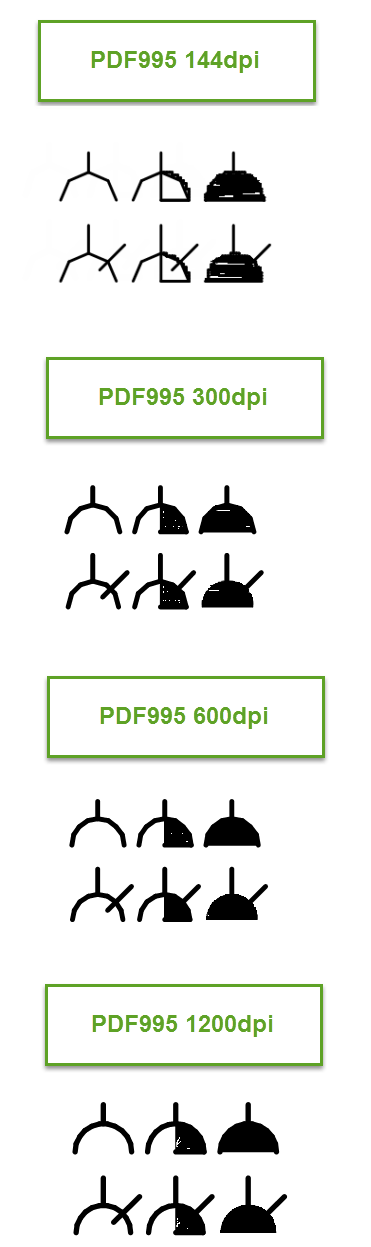
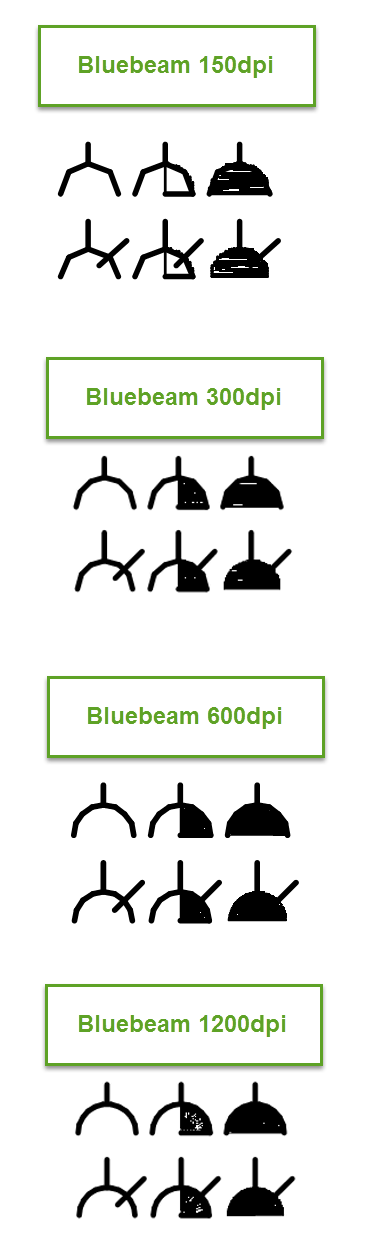
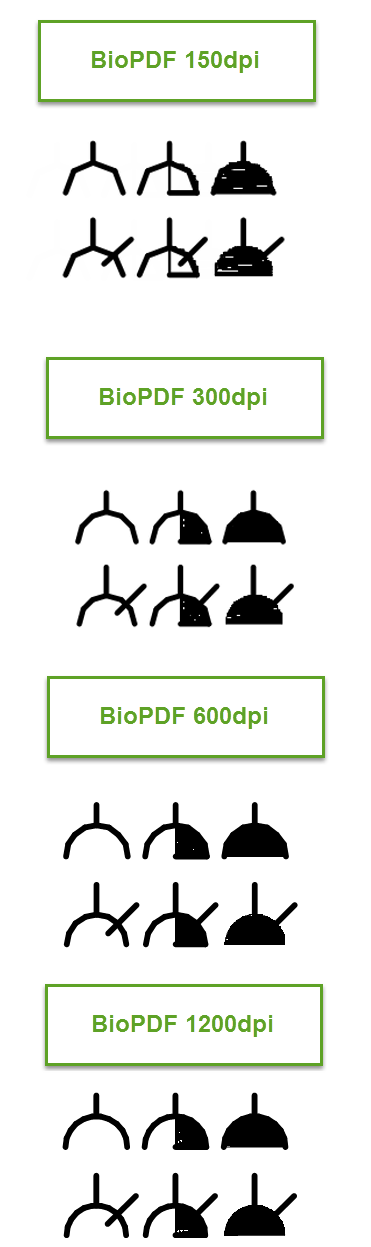
That’s it. The DPI setting you have configured your PDF printer to is the problem. I’ve done a comparisson on some electrical GPO families that I have created between Bluebeam, PDF995 and BioPDF. In each case I printed in 150, 300, 600 and 1200dpi, with the exception of PDF995 where 144dpi was the closest available option to 150.

Bluebeam Comparisson PDF995 Comparisson BioPDF Comparisson

Basically the root cause is that the filled area you are trying to print is considered to not be printable within the DPI setting you have selected, so it is skipped.

As you can see on these particular symbols, the half shaded GPO symbol that signifies a UPS connected GPO does not print correctly at 150dpi at all, the filled region does not print at all other than the line down the centre which is the fill boundary.

At 300dpi, our symbols actually print pretty well with only a few small glitches in the symbol but nothing to really worry about as you can tell that the symbol is clearly half shaded.

600dpi seems to be the optimum for these particular symbols with clean filled regions, interestingly jumping up to 1200dpi seems to introduce some strange glitches to the fills again, but they only really appear when zoomed right in on the page.

Don’t take my word for it though, give it a try yourself! I have found that although 600dpi seems to be the sweet spot for the families I’ve shown above, it varies from symbol to symbol. Some almost identical GPO symbols created by a colleague still don’t print correctly until 720dpi.

Keep in mind that higher DPI prints will take longer, especially if they’re forced to print in raster mode. Print times due to higher DPI settings or due to raster printing is an argument I’ve had in the past but personally I think the extra time taken to print a correct set of documents is well spent compared to saving a few minutes to deliver drawings that don’t quite hit the mark.