automation

Practical Dynamo – Moving Views Based on Another View

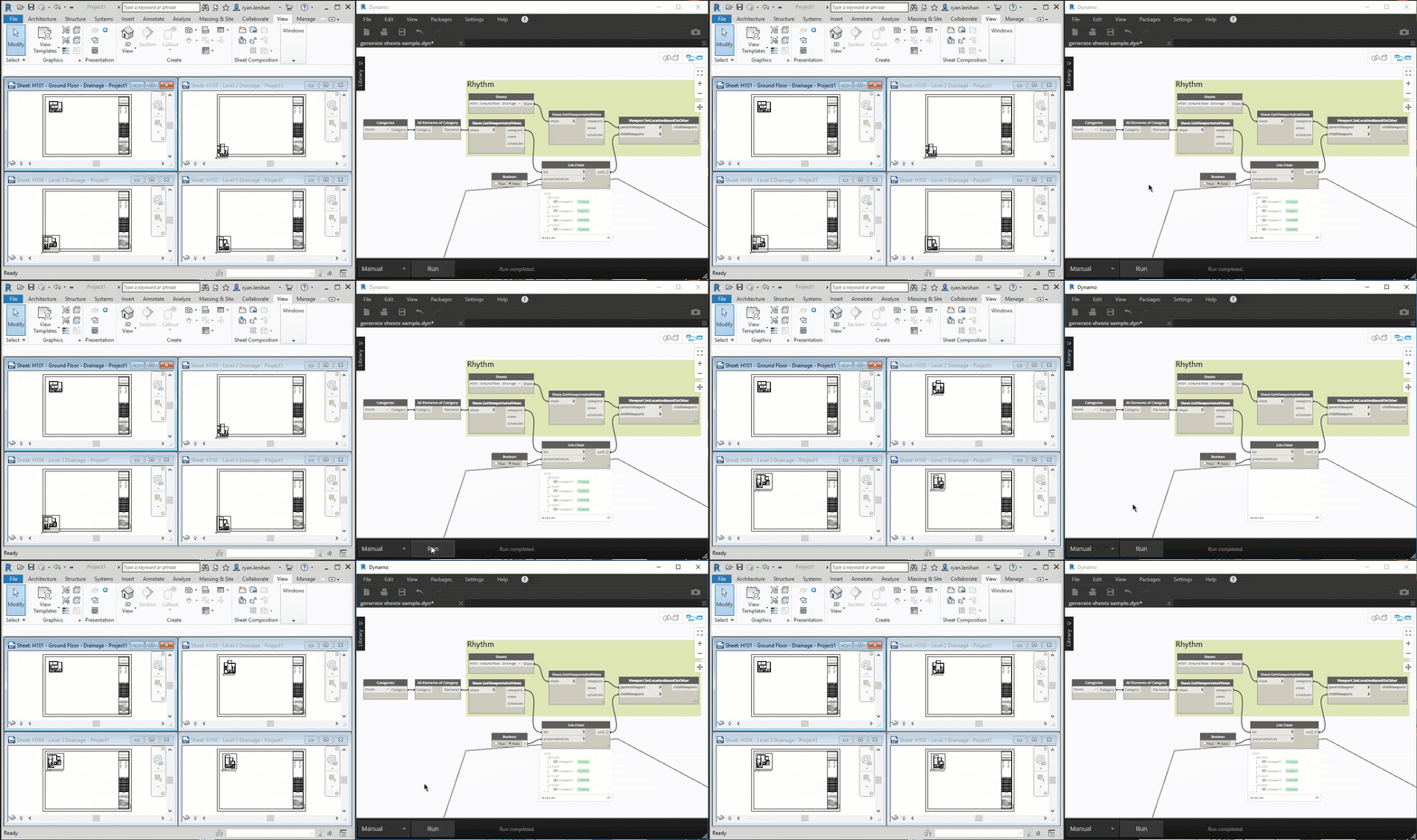
Okay, so we’re on a roll with practical Dynamo usage. Last week we looked at placing views centrally on our sheets, but what if you didn’t want the view centrally placed? What if you wanted views placed in the same location on all sheets maybe in the top left of the page?

As always with Dyanmo, there is a solution for that. Again we’re going to be using the Rhythm custom node package to get the work done. This method requires one sheet to be used as a template that all the following sheets are based on.

In our example this time around, where we want the view located is in the top left (shown on the left) but by default Dynamo places our views in the bottom left (shown on the right)


This workflow can be easily integrated into our previous graph where we created new sheets in Dynamo using Excel however for this example we’re going to create a standalone graph. For this example though, it’s assumed that this time around though that you already have all the sheets and views required created.


First we start by taking all of our sheets, we do this simply by using Categories and then All Elements of Category, after that we get into our Rhythm nodes.

First we get a list of all of the viewports on our sheets using the Sheet.GetViewportsAndViews node. Run the list through a List.Clean node to remove the empty list entries. This leaves us with just the viewport entries.

Meanwhile, we also need to get the viewport from our template sheet. In this instance our template sheet will be drawing H101 which we’ll select using the Sheets node and then we’ll feed that node into the Sheet.GetViewportsAndViews node which are both from the Rhythm package.

And finally we feed our data lists into the Viewport.SetLocationBasedOnOther node, which again is from Rhythm. It’s as simple as that.

Hit the run button and watch the magic happen.

Site Extraction with flux.io and Dynamo

By now, most people in the industry would have heard of flux.io, a spin-off from X (formerly Google X). Recently, flux.io updated their site extraction tool which pulls data from free open source datasets, Open Street Map and NASA. When combining with Dynamo, it couldn’t be any simpler to pull in topography information to your Revit model.

So how do we get started with this new-fangled technology?

Firstly, you’ll need a flux.io account. Once you have that sorted head on over to https://extractor.flux.io/ Once there you’ll be greeted with a Google map where you can search for your location. The map system works exactly as you expect it to. Simply drag and resize the selection box around the area you’re interested in and then select what you want from the menu on the top right of your screen.

When your data is ready, you can open it in flux and review the results. You simply drag and drop your keys from the column on the left into the space on the right. You can pan, zoom and rotate your way around the the 3D preview although as someone that works in Revit and Navisworks all day long I found that the controls aren’t the easiest.

[su_accordion][su_spoiler title=”Struggling with the navigation?”]right mouse button = pan
left mouse button = orbit
scroll button = zoom[/su_spoiler] [/su_accordion]

So all of this is great, but how do you get this into Revit? It’s actually incredibly simple.

You will need to have both Dynamo and the flux.io plugin suite installed, but once you have those installed you’re only a few minutes away from generating a Revit topography.

To get started you will need to login to flux.io through Revit and Dynamo, if it’s your first time using flux.io you might have to approve the connection between Revit/Dynamo and flux similar to what you would when sharing account information with online services and Google or Facebook.

Find the Flux package within Dynamo and first drop in the Flux Project node.

Once you have your flux project selected, it’s just three more nodes. Drop in the Receive from Flux node and select topographic mesh from the drop down. From there push the flux topography into Mesh.VertexPositions and then finally into Topography.ByPoints

Comparing the flux topography in red against the professional survey in blue, we can see that the flux topography is no replacement for a real survey, we are looking at a 5-8m difference between the survey and the flux data. Thankfully, surveyors aren’t going to be out of the job any time soon. This is the case on the example site in Sydney only though, other sites are far more accurate depending on where the source data is coming from. Remember the flux data is coming from a combination of sources including survey from satellites which leads to varying levels of accuracy. You shouldn’t rely on open source data like this as your sole source of information. You should be referring to relevant site survey information to verify the data against.

The inaccuracy of the data though doesn’t mean that the flux data is useless. Provided that you’re able to reference the flux data with known survey data and adjust to suit, this provides an excellent opportunity for using the flux data to fill in missing information surrounding your known survey and site. You then have opportunity to use the data for visualisation in concept stages or flyover presentations of large sites or precincts.


Using Dynamo to Generate Pipework Hangers

If you’re finding yourself modelling more detailed models that reflect proposed fabrication or constructed works, Cesare Caoduro over at the BIM and Others blog has a great step by step tutorial on how to use Dynamo to generate Unistrut style pipework supports.

If you’re mechanical or electrical it would be quite easy to adapt the first portion of the script to generate the same type of supports for ductwork and cable trays.

You can check out Cesare’s post here

Consistency is Key. Setting Project Info With Dynamo

Over the last 3 months I’ve been busy working hard on coordinating the BIM for an existing infrastructure study of a hospital. The site consists of everything from heritage listed sandstone buildings constructed in the 1800s where for obvious reasons there are no existing drawings to a building that’s currently in the final stages of construction and has been fully designed and coordinated in BIM. The infrastructure study involved locating assets and services that interconnected between buildings within relatively accurate space within the BIM at LOD 200 as per the BIMForum guidelines.

When it came to the BIM, we decided to work with one building per MEP model which meant we had 28 MEP building models, 28 architecture building models that were created using a series of stacked DWG files and 4 site models. The obvious problem with so many models was going to be the consistency of the data and how we would go about verifying that data. Ensuring that we had all 60 models with the same information consistent information was a mountainous task that would have taken an exorbitant amount of hours to complete if manually reviewed, even if utilising BIMLink.

Enter stage left: Dynamo.

We used Dynamo far more extensively on this project than any that I have worked on before. Normally I’d work with little snippets to process small amounts of data and automate minor repetitive tasks, but this project was a real BIM project; there were no traditional drawing deliverable which actually seemed to genuinely baffle newcomers to the project. The deliverable was the federated model and more importantly the information contained within all the individually modeled elements. A few hours on one of my Sundays and I ended up with what you see below

2016-09-16_14-30-00

That structured mess was able to verify photo file names and associated photo URLs, it verified asset codes were correct and if they weren’t, it generated new asset codes in the required format, it also checked and corrected all the information required to generate those new asset codes and finally probably the simplest part of it all, it filled the project information parameters for us. It was run on all MEP models, with another run on all the architecture models that we created.

Although we were able to automate a lot of really mundane processes, they were for the most part fairly project specific so even though the Dynamo script itself was invaluable to the project, other than the experience provided it doesn’t hold that much value for future projects. There was however one custom node that I put together for the population of Project Information parameters that will probably get used again and again on projects in the future.

2016-09-16_14-48-01

Each input of the node is filled with a string for each individual parameter. In the project, the building name/number parameter relied on the levels within the model being named correctly for which there was another portion of the script that checked that the naming conventions for levels were followed.

The processing of the data itself is performed by Python code inside the custom node, after which the output showed the data that has been filled. You can either pick the custom node up from the MisterMEP Dynamo package or if you want to recreate this yourself the Python code is below

 import clr
clr.AddReference("RevitServices")
import RevitServices
from RevitServices.Persistence import DocumentManager
from RevitServices.Transactions import TransactionManager

doc = DocumentManager.Instance.CurrentDBDocument
projinfo = doc.ProjectInformation
#The inputs to this node will be stored as a list in the IN variables.
OrgName = IN[0]
OrgDesc = IN[1]
BuildNumber = IN[2]
ProjAuthor = IN[3]
ProjDate = IN[4]
ProjStat = IN[5]
ProjClient = IN[6]
ProjAddress = IN[7]
ProjName = IN[8]
ProjNumber = IN[9]

TransactionManager.Instance.EnsureInTransaction(doc)


projinfo.OrganizationName = OrgName
projinfo.OrganizationDescription = OrgDesc
projinfo.BuildingName = BuildNumber
projinfo.Author = ProjAuthor
projinfo.IssueDate = ProjDate
projinfo.Status = ProjStat
projinfo.ClientName = ProjClient
projinfo.Address = ProjAddress
projinfo.Name = ProjName
projinfo.Number = ProjNumber

TransactionManager.Instance.TransactionTaskDone()

elementlist = list()
elementlist.append("DONE!")
elementlist.append(projinfo.OrganizationName)
elementlist.append(projinfo.OrganizationDescription)
elementlist.append(projinfo.BuildingName)
try:
elementlist.append(projinfo.Author)
except:
elementlist.append(list())
elementlist.append(projinfo.IssueDate)
elementlist.append(projinfo.Status)
elementlist.append(projinfo.ClientName)
elementlist.append(projinfo.Address)
elementlist.append(projinfo.Name)
elementlist.append(projinfo.Number)
OUT = elementlist
#OUT = "done" 

Quick and Dirty AutoIT – Delete Project Parameters

Have you ever had a model that you’ve wanted to remove the project/shared parameters from quickly without having to go through the mind numbing process of clicking the series of buttons to remove each individual parameter?

Have a crack at AutoIT, it’s a scripting language that you can either run direct from the editor or compile into *.exe files.

While 1
; usually a good idea to put this in so you don't max your CPU
; open your project parameter window and hit go!
Sleep(100)
;click remove
ControlClick("Project Parameters", "", "[CLASS:Button;INSTANCE:3]")
Sleep(100)
;confirm remove
ControlClick("Delete Parameter", "", "[CLASS:Button;INSTANCE:1]")
Sleep(100)
WEnd

I had a series of about 50 hodge-podge parameters that I wanted to remove and this little script cycled through them in a few seconds. Of course it only really works if you want to get rid of all the parameters in a project or template, but that is exactly what I wanted to do.

Hopefully someone else will find this one useful too.

Using Dynamo to Generate Mark Parameters from Information in Families

I recently had a question as a follow up to my bi-direction Excel using Dynamo post

Hi Ryan,

I’m trying to use the same concepts to export all structural columns. The node you used (family types) only exports 1 type at the time.

Do you know if there’s a node that lets me export all types of the column family I use in the project?

The node that you want to use to do this is All Elements of Category which you need to feed with your selection from the Categories node.

I thought I would share an example of how I used this node to generate individual type marks for all the columns on the project based off the family name and the level that the column is located on.

Of course generating the mark parameter from the family name means that you need a fairly solid and consistent naming convention in place. You could also use other type parameters within the family, this is just the method that I chose as an example.

Before we get started, I have used the Revit 2015 Sample Structure Project.RVT file and renamed the family types like so


The overview of this particular example of the Dynamo Script looks something like this, so let’s step through what it is doing.

2015-07-13_14-07-01

Getting started, we use our Categories node which we use to select our Structural Columns category. As mentioned earlier we feed that into the All Elements of Category node.

2015-07-13_11-12-25

Stepping through the top row, our elements feed into the Element.GetParameterValueByName node, and we’re picking up the Base Level parameter.

2015-07-13_13-49-43

2015-07-13_13-51-31

We then pass through to the Level.Name parameter which gives us the level name as you see it in the project browser as a string, which in this case is “01 – Entry Level”. Using the String.Split node we split the string in half using a Code Block node and entering ” “; into the code block to denote the space.

Think of this as the same as the Text to Columns command in Excel.

This gives us a list that splits the level name into

“01” “-” “Entry” “Level”

From here, run the data through the List.Transpose node and then finally into the List.GetItemAtIndex node, here we need the row at line 0 so we use a Number node to define the index.

You can alternatively use a Code Block node and enter “0”; as the code which works the same as the Number node.

On the bottom row we are taking our family type name and pulling out the type itself from the string that is returned. Even though when scheduling the Type parameter returns just the type, the string that is actually returned from Dynamo is in the format of Family Type: CRC 450, Family Name: STR_CONCRETE_ROUND_COLUMN.

So following a similar sequence to the top row, we split the string down to what we want which is “CRC 450”, to do this we need to split the string twice; first by the colon ( : ) and then by the comma ( , ). As you can see in the screenshot we need to transpose the list and pull the data at each row twice to get what we’re after.

2015-07-13_14-20-45

At the lower right corner there is a number generator. It is simply stepping from 1 to 200 in increments of one. Make sure to run the Number.Sequence node through the List.Transpose otherwise you will cause Dynamo to lock up while generating incredibly long number strings if you feed the sequence directly into the mark parameter.


Finally, we use a Code.Block node to concatenate the data we have pulled into a single string. The code block is simply a+b+c+d; which gives as four variables of the same name that we can feed the rest of our data into.

I have then created another list which consists of the Element ID and the string, we then finish up by selecting our string and populating the mark parameter as per my bi-directional Excel post.

Of course there are other options where you can generate the mark parameter from other type parameters in the family, I just chose to use the type name as the example this time around as I could show how you could break down a long string and the data you need from it.

Using Integers for Tricky Titleblocks

Have you ever come across a project with a keyplan in the titleblock and wondered how to go about managing the keyplan shading? The last thing you want to be doing is clicking every single check box across hundreds of drawings.

2015-06-24_15-45-31

In this jumbled mess there are a total of 14 shaded areas on the keyplan. 3 for the basement, 3 for the roof and 8 for ground and first floor. So what is the most efficient way to manage it all?

The answer is integers.

An integer is simply a number that is not a fraction. It is a whole number. In the instance of our keyplan, integers can be used to control the shading for our titleblock by associating those values with an on/of visibility parameter.

In this example, I have used the following number sequences

Basement = 1 – 3 (you could use negatives here)
Ground & first floors = 21 – 28
Roof = 31 – 33

2015-06-24_15-55-02

Each of the visibility parameters are then associated with the integer value by simply using the formula KEYPLAN_INT = x where x is the value associated with each level and zone. So for example, KEYPLAN_INT = 24 looks like this

2015-06-24_15-59-10

But we don’t have to stop there. You would have notice we have two wings on the project that has resulted in the drawings being rotated at 10 degrees, this means on those 3 zones our north point will be different to the rest of the project. We can again use our integer parameter to solve this.

As these rotated views are only on ground and first floor, they are associated with the codes 25, 26 and 27, this means we can control our north point rotation with an and formula nested inside an if formula. The formula that I’ve used is if(and(KEYPLAN_INT > 24, KEYPLAN_INT < 28), 3.091°, 13.091°) so any drawings that have a keyplan integer of greater than 24 and less than 28 will have the north point rotated at 13.091 from north, the remaining drawings will have their north points rotated at 3.091 degrees.

But what about the drawings that we don’t want a northpoint, or a keyplan for that matter? Drawings like schematics, details and drawing lists. The shaded parts of the keyplan already only display if the correct code is used, so we can take advantage of this and simply create another visibility parameter that is associated with the building outline, the additional border line on the titleblock and the north point. In my example I’ve named this parameter NO_KEYPLAN with the formula of not(KEYPLAN_INT = 0). When the integer = 0, everything is switched off.

If you have people that don’t know how to read hydraulics drawings (I’m looking at you Sydney), you can also associate this parameter with Stratman and his sweet 70s style.

So on the left we have an integer value of 24 and on the right, the same titleblock with an integer value of 0.

2015-06-24_16-14-23 2015-06-24_16-18-32


You can then use your favourite bi-directional Excel option, be it Dynamo, BIMLink or some other alternative, export all the data to excel, set the integers for each sheet, re-import the data and you’re done.


Building Design Suite Premium 2015 Unassisted Uninstaller

I was having a bit of trouble with a corrupt 2015 Building Design Suite Premium (BDSP) deployment from Microsoft’s System Centre Configuration Manager (SCCM) or Software Centre as the end user would know it.

Unforunately as the story goes, the deployment was installed on my production machine to fix some other issues with Revit 2015; next thing you know almost 2 days of 2015 downtime.

One of the most frustrating parts of the whole process is that although BDSP installs all the software you require in one seamless install package, uninstalling is not as easy. You need to go through and uninstall each program individually, in my instance that was 42 separate uninstalls I had to click though.. in the words of Kimberly Wilkins..

post-6769-aint-nobody-got-time-for-that-udx4.gif

You’ve probably realised by now that mind numbing clicking is not how I roll, so I went on the hunt for a solution, I very quickly stumbled across Mick Pletcher’s post about doing the exact same thing with Building Design Suite Ultimate using a powershell script.

The trick was to get the GUIDs for each part of the 2015 BDSP package as they would be different to Mick’s 2014 example.

You can do this with Windows Powershell, if you don’t have Powershell installed, simply head to Programs and Features in Control Panel and select Turn Windows features on or off scroll down through the list and makes sure that Powershell is checked

2015-06-17_8-30-26

Once in Powershell simply type the command wmic product get > c:\installedprograms.txt.

You will have to wait a moment or two depending on how much software you have installed but this will write a *.txt file to your C:\ which will list out all the software that you have installed on your machine.

You can then import the text file to Excel as a fixed width import. It will take a few moments to correctly place each column but once you’re done you should have something resembling this

2015-06-17_8-39-10

I sorted the data by the install date, as the BDSP package is installed at the same time. This made it easy to grab the information for the software that I wanted to get rid of. The information that we need is Description and IdentifyingNumber.

I simply put the information that I needed on another sheet and then concatenated the data in Excel so it matched the format required in Mick’s script, I then removed the 2014 BDSU information from the script and replaced it with my 2015 BDSP information.


UninstallApplication "SketchUp Import" "{C403E867-FCF1-432B-BCC1-8FFD40A10A6E}"
UninstallApplication "Autodesk App Manager" "{C8125548-F2D5-4059-823F-1F3C5BBD9F19}"
UninstallApplication "Autodesk BIM 360 Revit 2015 Add-in 64 bit" "{0D801D98-061A-4A4C-92B5-D3EC03C35587}"
UninstallApplication "Autodesk BIM 360 Glue AutoCAD 2015 Add-in 64 bit" "{B0E4871A-09A2-49C3-9A9E-D6409B37FD3A}"
UninstallApplication "Autodesk Featured Apps" "{EDDEE94B-214D-4B07-9727-A3E46F3E379A}"
UninstallApplication "Autodesk BIM 360 Navisworks Simulate 2015 Add-in 64 bit" "{3DA87F6B-013D-4C10-AE7A-79A03F7776D9}"
UninstallApplication "Autodesk Revit Interoperability for Showcase 2015" "{0BB716E0-1500-0410-0000-097DC2F354DF}"
UninstallApplication "Autodesk Revit Interoperability for 3ds Max 2015" "{0BB716E0-1500-0610-0000-097DC2F354DF}"
UninstallApplication "Autodesk Revit Interoperability for Navisworks Simulate 2015" "{0BB716E0-1500-0910-0000-097DC2F354DF}"
UninstallApplication "Autodesk Civil View for 3ds Max Design 2015 64-bit" "{1C4FFAF0-5DBB-4F7A-A386-46747D060826}"
UninstallApplication "Autodesk AutoCAD Performance Feedback Tool Version 1.2.2" "{85735431-6CD3-4B16-BEC8-95332034E53B}"
UninstallApplication "Autodesk Navisworks Simulate 2015 - 2014 DWG File Reader" "{051FD4D2-A63E-4796-929B-FB3B14E4DEB3}"
UninstallApplication "Autodesk Backburner 2015" "{8C5F38D2-8EFE-49A4-B3F5-BF3210FED168}"
UninstallApplication "Autodesk ReCap" "{31ABA3F2-0000-1033-0102-111D43815377}"
UninstallApplication "Autodesk Navisworks Simulate 2015 - 2010 DWG File Reader" "{9EA4D5D3-56DB-4B4F-AF40-3950178CE251}"
UninstallApplication "Autodesk Navisworks Simulate 2015 - 2012 DWG File Reader" "{B94DD4C4-632E-4EA7-97C4-94C3002189A6}"
UninstallApplication "Autodesk Navisworks Simulate 2015 - 2015 DWG File Reader" "{572D5A65-A177-426E-98FE-2221C2D612DC}"
UninstallApplication "Autodesk Navisworks Simulate 2015 - 2013 DWG File Reader" "{F2AB5586-5E2F-4971-BC10-5DB8C38B59B3}"
UninstallApplication "Autodesk Navisworks 2015 Exporters - 64 bit" "{2F1CE637-CF54-59E6-9D30-AD8AC2FD8B73}"
UninstallApplication "Autodesk Navisworks 2015 Exporters - 64 bit - English Language Pack" "{2F1CE637-CF54-0409-9D30-AD8AC2FD8B73}"
UninstallApplication "Microsoft Visual C++ 2012 x64 Additional Runtime - 11.0.61030" "{37B8F9C7-03FB-3253-8781-2517C99D7C00}"
UninstallApplication "Autodesk 3ds Max Design 2015" "{52B37EC7-D836-0410-0364-3C24BCED2010}"
UninstallApplication "AutoCAD 2015 - English" "{5783F2D7-E001-0000-0102-0060B0CE6BBA}"
UninstallApplication "AutoCAD 2015 Language Pack - English" "{5783F2D7-E001-0409-1102-0060B0CE6BBA}"
UninstallApplication "AutoCAD 2015 - English" "{5783F2D7-E001-0409-2102-0060B0CE6BBA}"
UninstallApplication "AutoCAD Raster Design 2015" "{5783F2D7-E031-0409-0102-0060B0CE6BBA}"
UninstallApplication "AutoCAD MEP 2015 - English" "{5783F2D7-E006-0000-0102-0060B0CE6BBA}"
UninstallApplication "AutoCAD MEP 2015 Language Pack - English" "{5783F2D7-E006-0409-1102-0060B0CE6BBA}"
UninstallApplication "AutoCAD MEP 2015 - English" "{5783F2D7-E006-0409-2102-0060B0CE6BBA}"
UninstallApplication "Autodesk Content Service" "{A37CDB58-AAE8-0000-8C13-E0F7BACB0D5F}"
UninstallApplication "Autodesk Content Service Language Pack" "{A37CDB58-AAE8-0001-8C13-E0F7BACB0D5F}"
UninstallApplication "Autodesk Workflows 2015" "{A90DD6F8-60D2-4803-AFF6-796400E73E1B}"
UninstallApplication "Autodesk Navisworks Simulate 2015" "{9D7AF9A9-2E52-0000-B0D0-652C6A18F3B8}"
UninstallApplication "Autodesk Navisworks Simulate 2015 - English Language Pack" "{9D7AF9A9-2E52-0409-B0D0-652C6A18F3B8}"
UninstallApplication "Autodesk Inventor Server Engine for 3ds Max Design 2015" "{D7DEFF4A-BB64-48CC-81AB-845BA62D6032}"
UninstallApplication "Autodesk Navisworks Simulate 2015 - 2011 DWG File Reader" "{8DA3934B-7873-46CC-A67C-54706D8E97BA}"
UninstallApplication "Microsoft Visual C++ 2012 x86 Additional Runtime - 11.0.61030" "{B175520C-86A2-35A7-8619-86DC379688B9}"
UninstallApplication "Microsoft Visual C++ 2012 x64 Minimum Runtime - 11.0.61030" "{CF2BEA3C-26EA-32F8-AA9B-331F7E34BA97}"
UninstallApplication "Autodesk DirectConnect 2015 64-bit" "{23C9ED7C-CB64-45FE-A7EA-1BA666F5589D}"
UninstallApplication "Microsoft Visual C++ 2012 x86 Minimum Runtime - 11.0.61030" "{BD95A8CD-1D9F-35AD-981A-3E7925026EBB}"
UninstallApplication "Autodesk Showcase 2015 64-bit" "{C7CE59CD-1993-44C6-A997-F17C1FA560A1}"
UninstallApplication "Autodesk 3ds Max 2015 Populate Data" "{57E92DED-DC6C-41E5-B9E1-76D83BD2EABE}"
UninstallApplication "Autodesk Navisworks Simulate 2015 - 2009 DWG File Reader" "{B0225F8F-483A-4ABF-AD72-63F5CA1F7A15}"

Now simply save the script as a *.PS1 (that’s a one, not a lowercase L) file, head into Powershell to where the script is saved – I saved mine as C:\2015uninstall.PS1 to run it just type in .\2015uninstall.ps1 and what BDSP uninstall without any further user intervention.

If the script doesn’t run you may need to change some settings in the Group Policy Editor. Head to Computer Configuration -> Administrative Templates -> Windows Components -> Windows Powershell, edit the Turn on Script Execution policy to be enabled and change the execution policy.

2015-06-17_9-02-48

The Allow local scripts and remote signed scripts should work, for security just remember to change the setting back to disabled when you’re done.

Using C# Macros to Bulk Create New Family Types

If you have it, BIMLink is a great piece of software with many different uses, from project setup to managing the bi-directional flow of data, through to standards and overall process management.

One of the things I’ve used it for quite a bit is renaming family names and type names bringing family content into line with company naming conventions turning a mess like this

2015-06-16_9-14-07

into something clean like this

2015-06-16_9-23-04

If you’ve ever ventured down this path, you may have discovered a shortfall in the process due to BIMLink not being able include families in a ‘type link’ with families that don’t actually have a defined type like these ones highlighted below

2015-06-16_9-31-00

This suddenly makes the standardisation process a whole lot more time consuming because if you have a lot of families without defined types, there is nothing BIMLink can do to help you. I even spoke with the Ideate team at the Australian Revit Technology Conference recently and they confirmed that this was the case and there wasn’t much they could do to help out as they are limited to what they can do by the Revit API.

I was determined to overcome the issue though, there had to be a way where I didn’t have to manually create a new type for every single family!

My first thought was to export all the families and then use journal files to batch process them, in concept it worked; each file in my list would have a new family type created but unfortunately it would fail after it created the new family type on the families without an existing type – the exact families I was trying to work with. I could continue to process the next file by restarting the batch but mindlessly restarting batch files until all the files were modified wasn’t the solution I was looking for.

In the end the solution was C#. BIMLink might be limited by the API because it is dealing with families within the open model, but I wasn’t limited to that as I’d already exported the family files to my local machine.

I came up with was a somewhat simple C# macro that processes a group of families in a predetermined folder, from there it creates a new family type for each simply named New_Family.

I had initially wanted to create family types named Standard but realised I’d likely run into issues with my macro due to it’s simplicity if I came across a family that already included the Standard type name.

public void ProcessNewTypes()
{
    Autodesk.Revit.ApplicationServices.Application application = this.Application;
    string directory = @"C:\INSERT\FILE\LOCATION";
    string s = "";

    // loop through all files in the directory
    foreach (string filename in Directory.GetFiles(directory))
    {
        s += "Family Name,Family Type,";
        Document doc = application.OpenDocumentFile(filename);

    // skip any files that are not family *.rfa files
        if (!doc.IsFamilyDocument)
            return; 

    // create the new family types
        using (Transaction t = new Transaction(doc, "Create New Family Type"))
            {
            t.Start();

        FamilyManager familyManager = doc.FamilyManager;

    // this is the new family type name
        {
            familyManager.NewType("New_Family");
        }

    // commit the changes and save the family *.rfa file
        t.Commit();
        doc.Save();

            }

      }
}

And it was that simple. For me, the macro processed around 350 families in a few seconds.

Once complete, you can reload the families into your template or project file and then process the files through BIMLink as per usual to rename the family and type names.

For any families that already had a determined type and have now ended up with two types, you can simply purge out the New_Family types from the model.

Scope Box Synchroniser Addin

Have you ever tried to manage a large project across multiple models with numerous scope boxes? Or maybe you just want to have your scope boxes match the ones living in the architect’s model?

Well, there is a new addin that you can get for Revit called the Scope Box Synchroniser which imports scope boxes from a linked Revit model.

You can read more at the author’s website at Omnia Revit or head straight to the Autodek App Exchange to download

Just imagine how much easier this could make your life when setting up a large multi-model, multi-discipline project. You setup a master control file that hosts your levels, grids and now also your scope boxes. Link in that master control file to each of your S+MEP models and pull in consistent scope boxes across the project.